
| | Home | Get It | Register | Get Server | Help | About | Chuckles' PicView | Contact Buddy | |
|
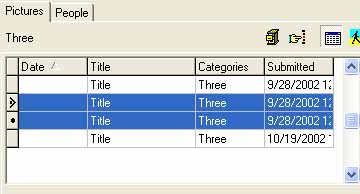
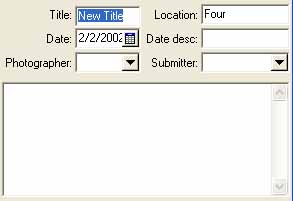
Editing multiple pictures When you have added a bunch of pictures, you may want to set some of the properties all at once rather than one by one. For example, you can change the Location, Date, etc. for a selection of pictures. 1) Select the pictures you want to change in the picture list. Edit any of the picture properties on the right side. For example, Date, or Location.
Only the properties you change will be edited for all the pictures. Finally, press the Save Button To recap, let's say you have a hundred or so pictures to add to Family Photo Buddy. Editing each picture one by one is out of the question! Usually you are adding these pictures to a category, so you might want to add that first. Add the first picture, assign it to a new Category, and display this Category. Now all the pictures you add will be added to the correct category automatically. (see Categories for more) Add all the pictures (see Adding pictures for more). After you have added them all, Select All of them, and edit the Location, Date, Photographer, etc.
©2007 Family Photo Buddy. All Rights Reserved. |
 to save your changes.